
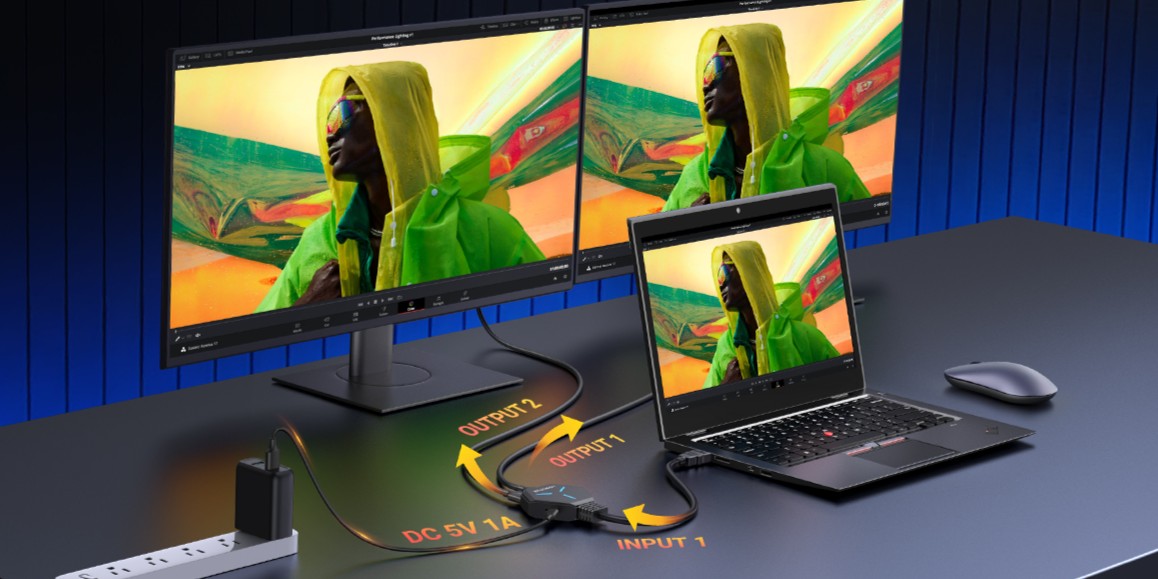

Goal: Show the same HDMI picture from one source on two screens at the same time (mirror/duplicate mode).
If you’re setting up a TV + projector, two monitors for a presentation, or a console mirrored to two displays, an HDMI splitter is a simple solution. This guide explains what to expect and how to fix common issues.
1) Mirror vs Extend: what a splitter can and can’t do
- Works: Mirrors (duplicates) one HDMI signal to two displays (same image on both).
- Doesn’t: Extends your desktop to show different content on each screen.
If you need extended display, you usually need a docking/graphics solution or a device with multiple video outputs—not an HDMI splitter.
2) Supported resolutions (practical expectations)
- 4K (4096×2160 / 3840×2160) up to 24/30Hz
- 1440p up to 60Hz
- 1080p up to 60Hz
- 720p up to 120Hz
Note: With two screens connected, the final output may drop to the highest resolution both displays support together (the “lowest common” capability). This is normal for many HDMI setups.
3) Quick setup (3 steps)
- Connect your source device to HDMI IN on the splitter.
- Connect your two displays to HDMI OUT 1 and HDMI OUT 2.
- For stability (recommended), connect 5V power if your setup requires it. Then start testing at 1080p@60Hz before moving to higher resolutions.
4) Best use cases
- Presentations: Laptop → meeting room display + projector (same content)
- Home entertainment: TV box → TV + second display (same content)
- Gaming mirror: Console → two screens (same picture)
5) Troubleshooting (fast fixes)
Problem A: One screen shows “No Signal”
- Confirm the display is set to the correct HDMI input.
- Swap HDMI cables to rule out a weak or incompatible cable.
- Test with only one display connected first, then connect the second.
- If available/recommended for your model, connect stable 5V power.
Problem B: Flicker / random black screen
- Try a shorter or higher-quality HDMI cable (especially for 4K).
- Set the source output to 1080p@60Hz to confirm stability, then increase gradually.
- Ensure the splitter and source device have stable power.
Problem C: Resolution dropped after connecting the second display
- This is usually caused by HDMI negotiation: the output becomes the best match both displays can handle.
- Try setting a manual output (e.g., 1080p@60Hz) and verify both screens work correctly.
Problem D: Streaming apps / protected content issues
- Protected-content behavior can vary by device/app/display chain.
- Try another source device, cable, or lower resolution to validate the signal chain.
6) Compatibility checklist
| Supported | Not supported |
|---|---|
| Mirror mode (same image) | Extended display (different content) |
| TV + projector presentations | Two-monitor productivity expansion |
| Console output to two screens (same image) | Bypass HDCP restrictions |
7) FAQ
Can this extend my desktop to two monitors?
No. An HDMI splitter mirrors (duplicates) the same signal to both displays.
Why does my resolution drop when I connect two screens?
Often the final output becomes the highest resolution that both displays support together.
Shop the guide
Still need help? Contact us


Share:
How to Charge Two USB-C Devices from One Charger (Charging-Only Y Splitter): Setup & Troubleshooting