
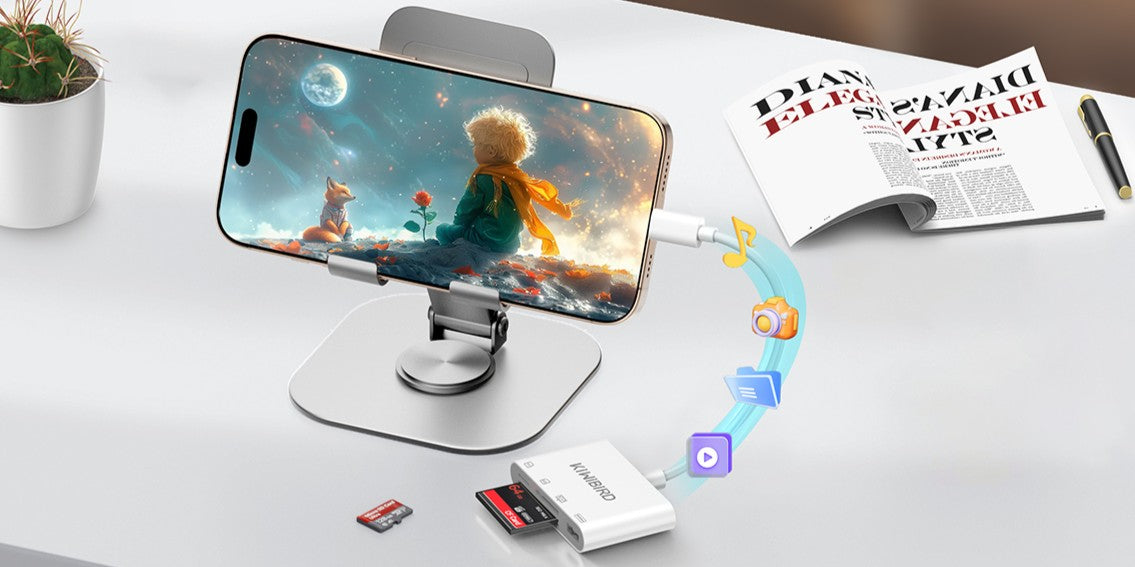

Need a quick way to move camera files to your phone? This USB-C card reader lets you transfer photos and videos from CompactFlash (CF), SD, or microSD to your iPhone (USB-C models), iPad, Android phone, or a USB-C laptop—no drivers required on most modern systems.
1) What this card reader supports
- Slots/ports: CF, SD, microSD, and a USB-A port for a USB flash drive.
- Speed expectation: Up to 480Mbps via USB 2.0 (practical speed depends on card/file size).
- CF type: Supports CF Type I. (CF Type II / MicroDrive are not supported.)
- Power: No external power needed (powered by your connected device).
2) Device & OS compatibility (in plain English)
It’s designed for USB-C devices and is listed as compatible with major platforms including Windows, macOS, iPadOS, iOS, Android, ChromeOS, and Linux/Ubuntu.
Note for iPhone: iPhone models with a USB-C port (for example iPhone 15/16 series) work directly. Older Lightning iPhones typically require an adapter.
3) Best workflows (choose one)
A) CF/SD → Phone (fast sharing/editing)
- Insert your CF/SD/microSD card into the matching slot.
- Plug the reader into your phone’s USB-C port.
- Open your file manager app (iPhone: Files; Android: Files/My Files) and locate the external storage.
- Copy photos/videos to your phone storage (or import into your photo app if you prefer).
B) Card → Laptop (backup + editing)
- Insert the card.
- Plug into a USB-C port on your Mac/Windows laptop.
- Open Finder/File Explorer and copy the DCIM (or project) folder to your drive.
C) Card → USB flash drive (phone-to-USB backup)
This reader is described as able to read/write an SD or microSD card while using a USB-A device, which is useful when you want a simple “card to USB” backup without carrying a laptop.
- Insert SD/microSD into the slot.
- Insert a USB flash drive into the USB-A port.
- Connect the reader to your USB-C phone/tablet and copy files between the two storages using your file manager.
4) What to expect (avoid surprises)
- Not all slots at once: For stability, it’s generally one card at a time (other slots won’t “boost” speed).
- USB 2.0 ceiling: Large 4K files may take longer than USB 3.x readers.
- CF limitations: CF Type I only—if your camera uses CF Type II/MicroDrive, it won’t work.
5) Troubleshooting (quick fixes)
Problem A: The card doesn’t show up
- Re-seat the card and make sure it clicks in fully.
- Try the card on a computer to confirm the card itself is readable.
- Test with another SD/microSD/CF card to isolate whether the issue is the card or the reader.
Problem B: iPhone/Android doesn’t detect it
- Confirm your phone has a USB-C port (or use a compatible adapter if needed).
- Use the built-in file manager (iPhone: Files; Android: Files/My Files).
- Disconnect and reconnect in this order: reader → phone, then insert the card.
Problem C: Transfer feels slow
- USB 2.0 devices are typically up to 480Mbps; large videos take time.
- Copy in batches (e.g., 2–5GB at a time) to avoid app timeouts on phones.
6) FAQ
What is the maximum transfer speed?
The product listing states up to 480Mbps via USB 2.0 for the CF/SD/microSD/USB-A interfaces (real-world speed depends on your card and files).
Does it support CF Type II?
No. It is listed as supporting CompactFlash (CF) Type I, and notes that CF Type II and MicroDrive are not supported.
Do I need external power?
No external power is required; it is powered by the connected device.
Shop the guide
Still need help? Contact us


Share:
How to Charge Two USB-C Devices from One Charger (Charging-Only Y Splitter): Setup & Troubleshooting
Why a Micro HDMI to HDMI Adapter Matters for Cameras and Portable Setups